
Picture a friend handing you her old iPhone. You want to wipe it, set it up, and move your data over. Ten minutes in, you hit a screen that asks about a feature you have never heard of. Do you turn it on? Skip it? Does it matter?
Most people tap "Continue" and hope for the best. That is how settings end up wrong and backups end up missing.
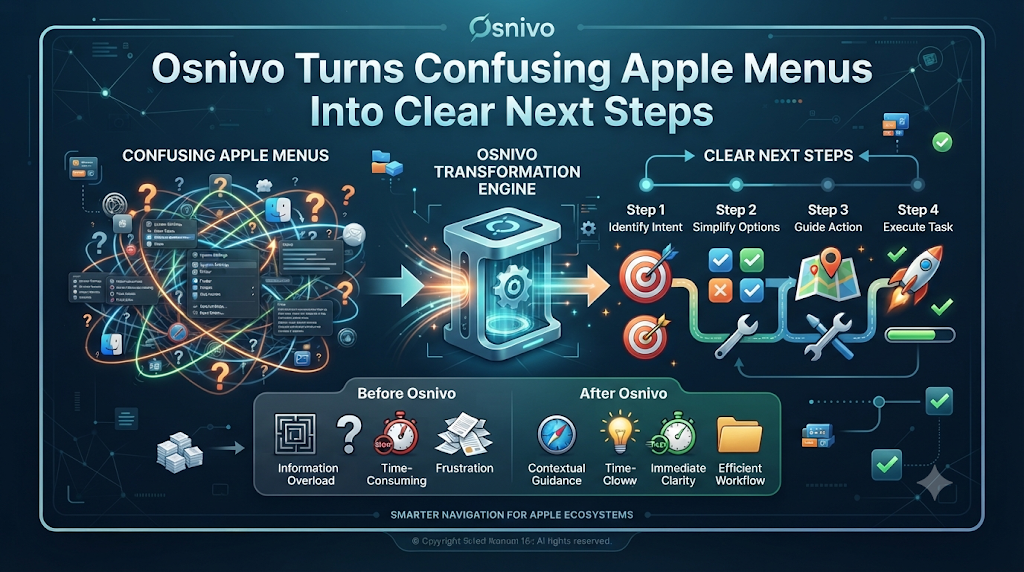
This is the gap Osnivo, an independent Apple knowledge site, tries to fill. This article shows how its tools work, where they help most, and how to use them wisely.
Why Apple Help Feels Hard to Use
Apple makes great devices. But help for them is scattered. One answer lives on a support page. Another lives in a forum thread from three years ago. A third lives in a video that skips the one step you need.
The next problem is version drift. Settings move between releases. A feature may work on one model and not on another. A generic tip can send you down the wrong path.
So the real need is simple. You want an answer that fits your exact device and software version. Osnivo is built around that idea.
Osnivo in One Minute
Osnivo covers six Apple systems: iOS, iPadOS, macOS, watchOS, tvOS, and visionOS. The site calls itself an operating manual for the Apple ecosystem. It also says it is not affiliated with Apple Inc.
It offers three things. First, it has tools you can use, like checkers and step-by-step fixes. Second, it has a blog with longer guides. Third, it has a Q&A forum where people share answers.
Everything is built to answer one question: "What do you want to do?"
Ask First, Browse Later
At the top of the site sits a search box called Ask Osnivo. You type a question in plain words. The site says answers come only from its verified, Apple-sourced pages.
That rule matters. It means the tool should not guess. If it cannot confirm something, it says so.
A Week With a New iPhone
The best way to see Osnivo's value is to follow a real task. Here is how a new-phone week could go using its tools.
Day One: Setup
Many people search for how to set up a new iPhone and land on a long list. Setup Companion works differently. It explains each setup screen in Apple's own words. It tells you what the screen does, whether to skip it, and whether you can change it later.
It also splits the work into time blocks: the first 15 minutes, the first hour, day one, and the first week. You do the essentials first. The rest can wait.
Day Two: Moving Your Data
Say you are switching platforms. You need to transfer data from Android to iPhone. The Migration Planner lays out what moves on its own and what you must move by hand. It uses Apple's steps as a checklist.
The same tool covers Windows to Mac and old device to new device. A checklist helps you catch gaps before you erase anything.
Day Three: Settings
Now you want to change something small, like how notifications look. Settings Pathfinder gives the exact path for your device and version. It also shows where a setting used to live.
Think of it as an iPhone settings guide that updates with the software. You search for the task, not the menu name.
Day Four: Backups
Next, protect your data. Many people ask how to back up an iPhone and stop after one try. Backup Planner covers more. It shows how to check that you are backed up. It lists the ways to back up each device. It also explains what a backup leaves out and how to restore.
Day Five: Security
Security Checkup pulls together recent security updates and settings worth reviewing. It works like a living iPhone security settings checklist. It also shows Apple's exact paths, so you know where to tap.
Day Six: Your Score
Setup Score turns all this into one number. You tick what you have done and see what is left. It is a simple way to spot gaps in security, backup, and recovery.
Day Seven: Make It Yours
My Osnivo lets you add your devices by model and OS version. The site says it never asks for passwords, recovery keys, or serial numbers, and that your list stays in your browser. After that, guides and update notes match your gear.
When Something Breaks
Problems rarely arrive at a good time. Osnivo has a fix tool built for them.
Take a common one: your iPhone won't connect to Wi-Fi. Osnivo Fix walks through Apple's steps one at a time. You check your Wi-Fi settings. You make sure Airplane Mode is off. You look at VPN or security apps. Then you test whether other devices can join the same network.
After every step, the tool asks, "Did this fix it?" If yes, you stop. If no, you move on. That beats trying ten random tips at once.
Two more tools help here:
- Error Explorer explains alerts, error codes, and startup symbols.
- Emergency Mode handles bigger trouble, such as a lost phone, a locked device, or a failed update. It shows the most urgent step first.
Before You Update
Updates raise two worries. Will my device run it? And is it safe to install now?
Osnivo splits these into separate tools:
- Compatibility Checker answers yes, no, or "with conditions."
- Should I Update? gives a rating and shows its reasons.
- Update Readiness Checker turns Apple's pre-update steps into a checklist.
- Version Compare shows what changes between two releases.
These suit searches like iOS 27 compatible iPhones, macOS 27 compatible Macs, and should I update to iOS 27. Still, treat any checker as a fast first look. Before you install, confirm your model on Apple's own support pages. Back up first, too.
A Quick Look at the Main Tools
| Your goal | Osnivo tool | What you get |
|---|---|---|
| Set up a device | Setup Companion | Each screen explained |
| Move data | Migration Planner | A transfer checklist |
| Find a setting | Settings Pathfinder | The exact path |
| Fix a problem | Osnivo Fix | Apple's steps, one at a time |
| Choose to update | Should I Update? | A rating with reasons |
| Stay safe | Security Checkup | Updates and settings to review |
Mac Users Are Covered Too
Osnivo is not only for iPhone owners. Its blog includes Mac guides on topics like Safari and WhatsApp. Mac users often want short, practical help, such as QuickTime Player screen recording Mac. A site that ties each guide to a device and version makes those steps easier to trust.
Selling or Trading In
Many people forget the last stage. Before you hand a device on, you must sign out, unpair, remove Activation Lock, and erase it. The Before You Sell checklist lists Apple's steps for each device. Skipping this can leave your data, or the next owner's access, in a mess.
How Osnivo Earns Trust
Tech help is only useful if it is right. Osnivo ranks its sources. Apple documentation and security notes come first. Its own testing comes next. Trusted technical sources and verified community reports follow. Unconfirmed reports rank last, and the site says it never states them as fact.
Guides also carry a Trust Card. It shows the last check date, the software tested, and a confidence level. You can report outdated information right from the site. That openness lets you judge for yourself.
Smart Habits for Any Apple Owner
- Add your devices so advice fits your model.
- Back up before any big change.
- Read why a setting matters before you flip it.
- Follow fix steps in order.
- Check the date on every guide.
- Review security settings now and then.
Common Mistakes to Avoid
- Tapping through setup. You may skip a useful security option.
- Updating without a backup. A failed install can cost you data.
- Using old advice. Menus change between versions.
- Trying many fixes at once. You will not know which one worked.
- Trusting one source. Cross-check big choices with Apple.
- Sharing passwords. A trustworthy guide never needs them.
- Selling too fast. Remove Activation Lock and erase first.
10 Frequently Asked Questions
1. Who is Osnivo best suited for?
It suits first-time iPhone owners, switchers, families, students, and professionals. Anyone who wants clear Apple help will find something useful.
2. What is Ask Osnivo?
It is a search box where you type a question in plain words. The site says its answers come only from verified, Apple-sourced pages.
3. How does Osnivo tailor advice to my device?
You add your model and OS version in My Osnivo. The site then highlights updates and guides that apply to you. It does not ask for passwords or serial numbers.
4. What should I check before I transfer data from Android to iPhone?
Start with a backup of the old phone. Then use the Migration Planner to see what moves on its own and what you must move by hand. Follow Apple's steps in order.
5. What happens if Osnivo cannot verify something?
It says so. The site states that "could not verify" is better than a made-up answer.
6. Does Osnivo replace Apple Support?
No. It is independent. Use it to understand and prepare. For repairs or account issues, contact Apple directly.
7. What if my device is not on the update list?
Check the Compatibility Checker, then confirm on Apple's pages. Do not try to force an update. Before relying on iOS 27 compatible iPhones lists, make sure your exact model is named.
8. How can I tell if a guide is out of date?
Look at its Trust Card for the last check date and tested software. If something seems wrong, use the site's report option.
9. Can Osnivo help me sell or trade in a device?
Yes. The Before You Sell checklist covers signing out, unpairing, removing Activation Lock, and erasing. Do these steps before you hand the device over.
10. What should I do first in an emergency?
Open Emergency Mode and pick your situation, such as a lost or stolen device. It puts the most urgent step first. Also contact your carrier or local authorities if needed.
Conclusion
Apple devices are easier when each step has a clear answer. Osnivo aims to give that, with tools built around real tasks and sources it ranks in the open. Whether you are unboxing a phone, planning an update, or fixing a stubborn Wi-Fi problem, it gives you a place to start. Use it as a smart first stop, and confirm big decisions with Apple. Do that, and your next menu screen will feel a lot less like a guess.



Top comments (0)