
If you have a Jupyter Notebook file and want to use it in Google Colab, you can easily upload the notebook to Colab and start working on it. Here are the steps:
How to locate and download google colab notebook
- Open Google Colab: Go to Google Colab in your web browser.
- Upload Your Jupyter Notebook:
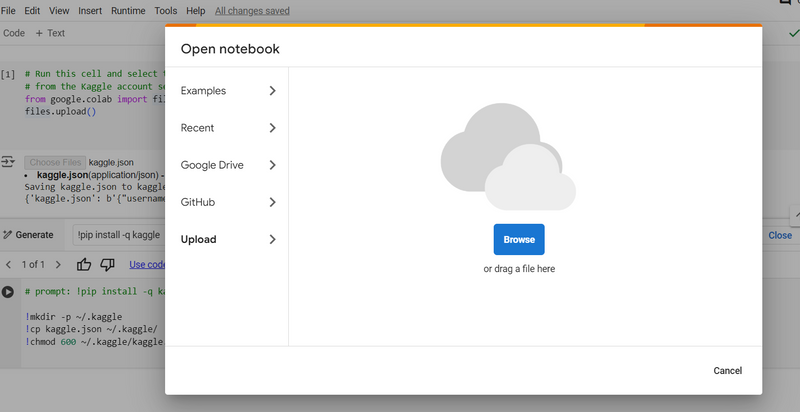
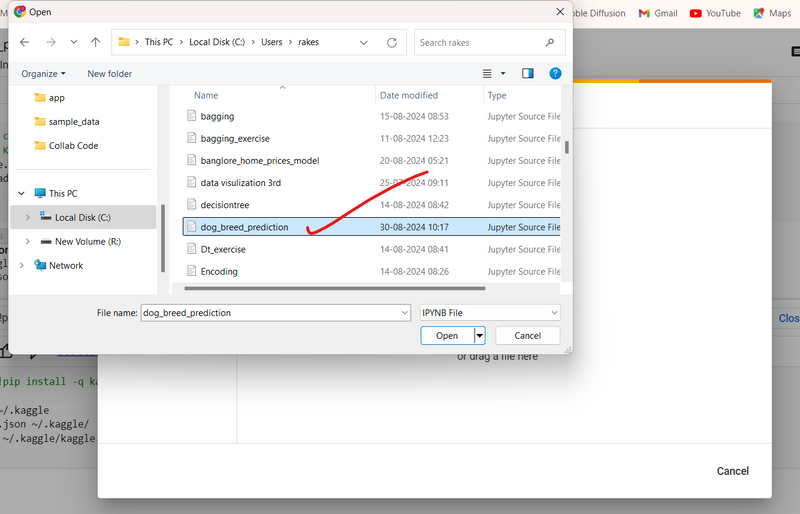
In Colab, click on "File" in the top left corner.
Select "Upload notebook..." from the dropdown menu.
A file picker will appear. Choose the Jupyter Notebook file (.ipynb) from your local machine.
The notebook will upload and open in Google Colab.
- Alternatively, Open from Google Drive: If your Jupyter Notebook is already in your Google Drive: Click on "File" and then select "Open notebook...". Choose the "Google Drive" tab. Navigate to your notebook file and open it.
- Work on the Notebook: Once the notebook is open in Colab, you can edit, run cells, and use all the features of Google Colab, such as GPU/TPU support.
- Save Changes: Any changes you make can be saved back to your Google Drive or downloaded to your local machine by going to "File" > "Download .ipynb". This method allows you to seamlessly transition your Jupyter Notebooks to Google Colab for further
How to locate and download google colab notebook
step1: go to this url
step2 click new notebook

step3:go to file ->new notebook
import torch
print(torch.__version__)
if torch.cuda.is_available():
    print("GPU is available!")
    print(f"Using GPU: {torch.cuda.get_device_name(0)}")
else:
    print("GPU not available. Using CPU.")
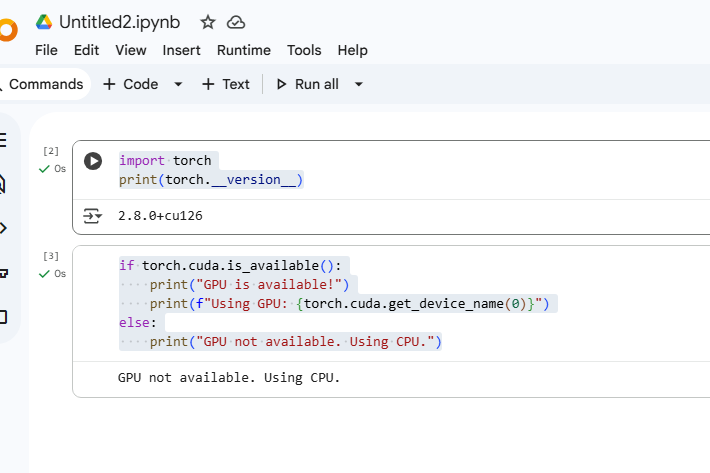
step4: to change gpu
in topmenubar go
runtime-->change runtime type-->select t4 gpu radiobutton-->save
step5: how to locate
go to File-->locate in drive-->
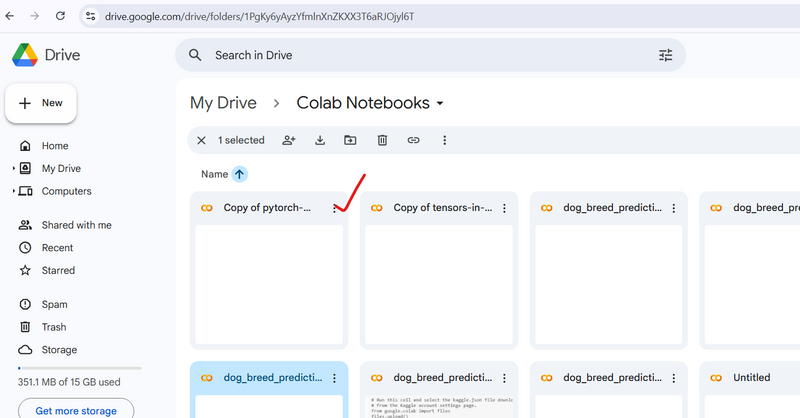
step6:how to download
go to google drive--> click 3 dot--> click download



Top comments (0)