
Why cron sends email
When a cron job prints anything, whether normal output or an error, cron emails that text to the user who owns the crontab. On most servers nobody reads those emails. They pile up in a local mailbox:
/var/mail/root (or /var/spool/mail/root)
A job that runs every minute and prints one line produces 1,440 emails a day. Several such jobs over a few months add up to gigabytes.
Step 1: Check whether you have the problem
ls -lh /var/mail/root
-rw------- 1 root mail 1.7G Sep 24 10:15 /var/mail/root
Anything above a few MB is worth looking into. Also check overall disk usage:
df -h /
Step 2: Find which jobs are sending the mail
Count the emails:
grep -c '^From ' /var/mail/root
Group them by the job that sent them. Cron puts the command in the subject line:
grep '^Subject:' /var/mail/root | sort | uniq -c | sort -rn | head -10
48210 Subject: Cron root@server /opt/scripts/site_check.sh
12030 Subject: Cron root@server /bin/bash /root/disk-alert.sh
The top entries are the ones to fix.
Step 3: Find where those jobs are defined
Cron jobs can live in several places, so check all of them:
crontab -l                 # root's crontab
crontab -l -u ubuntu       # another user's crontab
cat /etc/crontab
ls /etc/cron.d/ && cat /etc/cron.d/*
Or search for the script name everywhere:
grep -rn "site_check" /etc/crontab /etc/cron.d /var/spool/cron 2>/dev/null
Step 4: Redirect the output
Open the crontab:
crontab -e
How to change each job:
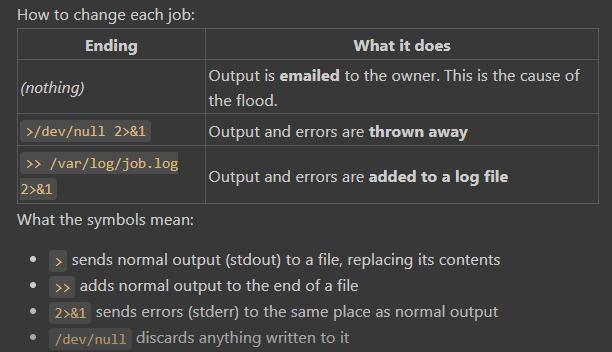
Ending What it does
(nothing) Output is emailed to the owner. This is the cause of the flood.
>/dev/null 2>&1 Output and errors are thrown away
>> /var/log/job.log 2>&1    Output and errors are added to a log file
What the symbols mean:

> sends normal output (stdout) to a file, replacing its contents
>> adds normal output to the end of a file
2>&1 sends errors (stderr) to the same place as normal output
/dev/null discards anything written to it
Frequent, low-value jobs (every minute, every 5 minutes): throw the output away.
* * * * *   /opt/scripts/site_check.sh >/dev/null 2>&1
*/5 * * * * /bin/bash /root/disk-alert.sh >/dev/null 2>&1
Important, infrequent jobs such as backups: log the output so you can still see failures.
0 3 * * 0 /bin/bash /opt/scripts/weekly-backup.sh >> /var/log/weekly-backup.log 2>&1
Check the log later with:
tail -50 /var/log/weekly-backup.log
Option: turn off cron mail for a whole crontab
Add this as the first line of the crontab:
MAILTO=""
Cron then sends no email for any job in that file.
⚠️ Watch out: some alert scripts work by printing a warning and relying on cron to email it. Adding /dev/null or MAILTO="" silences those alerts. Check the script with cat /path/to/script.sh. If it only uses echo, have it send the alert itself (mail, curl to Slack or Telegram, and so on) before you silence it.
Step 5: Empty the mailbox
Only do this after fixing the crontab. Otherwise it fills up again straight away.
If you want, keep the most recent emails first:
tail -n 2000 /var/mail/root > /root/last-cron-mail.txt
Then empty the file:
truncate -s 0 /var/mail/root
Use truncate, not rm. truncate empties the file but keeps its owner and permissions, which the mail system relies on.
Check the space came back:
ls -lh /var/mail/root # 0
df -h / # more space available
Step 6: Confirm the flood has stopped
Wait 5-10 minutes, then check again:
ls -lh /var/mail/root
If it's still 0 or a few KB, you're done. If it's growing, one job is still mailing. Run the Subject: count from Step 2 to see which one.
Quick reference
# 1. Check
ls -lh /var/mail/root

# 2. Find what's sending mail
grep '^Subject:' /var/mail/root | sort | uniq -c | sort -rn | head

# 3. Find the job
grep -rn "script-name" /etc/crontab /etc/cron.d /var/spool/cron

# 4. Fix it: add >/dev/null 2>&1 (or >> logfile 2>&1)
crontab -e

# 5. Empty the mailbox
truncate -s 0 /var/mail/root

# 6. Check again after a few minutes
ls -lh /var/mail/root
Takeaway
Every cron job should say where its output goes. Leave that out and cron emails the output to a mailbox nobody reads, and it grows until the disk is full. As a rule:
Frequent jobs: >/dev/null 2>&1
Important jobs: >> /var/log/<job>.log 2>&1, and rotate those logs with logrotate
Alert jobs: have the script send its own alert, and don't rely on cron mail



Top comments (0)