
Inspect Apache logs
Find Laravel session directories
Inspect MySQL logs
Locate backups and installer archives
Check recovered space
How to Fix a Cron Email Flood
How to Add Swap Space on a Linux Server
df -kh
output
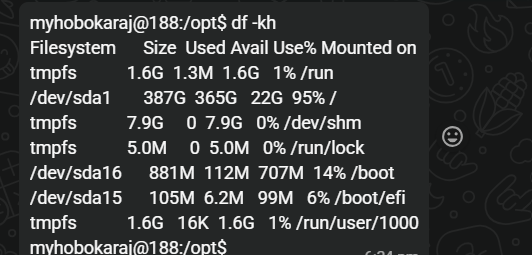
/dev/sda1 387G 365G 22G 95% /
That means the root filesystem / is 95% full.
Commands such as df show usage by filesystem, while du helps identify which directories and files consume that space. About df, about du
Holidaylandmark
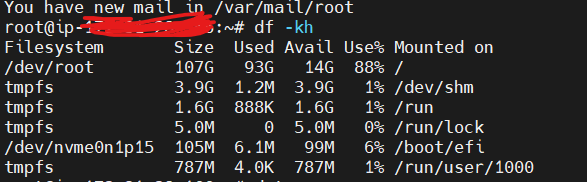
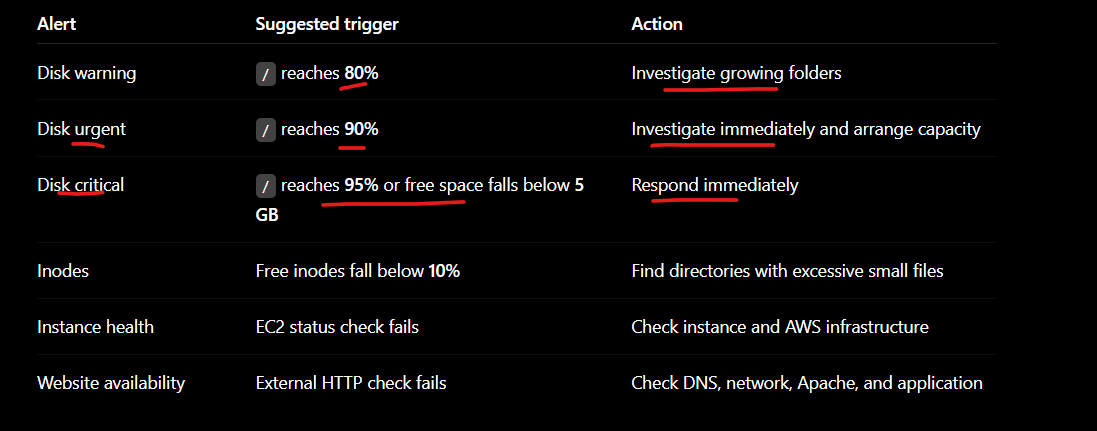
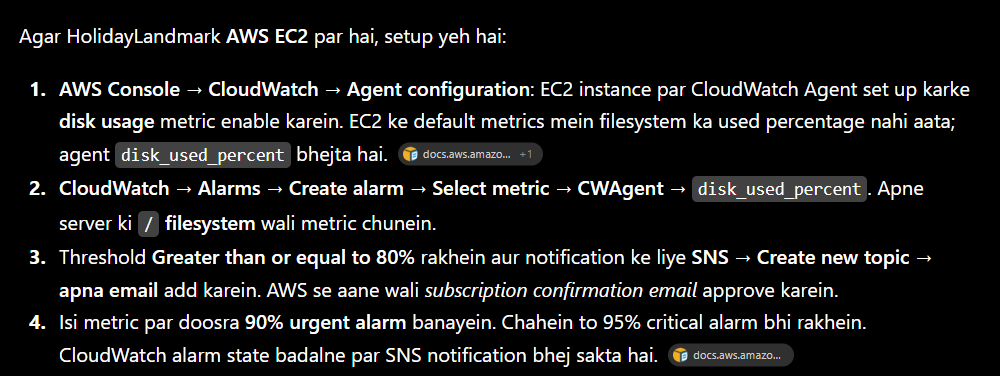
Where is /opt/lampp/htdocs stored?
Normally:
/opt/lampp/htdocs
is nested like this:
/
└── opt
    └── lampp
        └── htdocs
            ├── project-1
            ├── project-2
            └── project-3
Because /opt does not appear as a separate mounted filesystem in your df -kh output, it is stored inside:
/dev/sda1 mounted on /
Yes, /dev/sda1 is your main filesystem:
Size: 387 GB
Used: 365 GB
Available: 22 GB
Usage: 95%
Mounted at: /
Because it is mounted on /, begin searching from /.
- Find the largest main folders
This command is safe and does not delete anything:
sudo du -xhd1 / 2>/dev/null | sort -hr
FASTER SEARCH COMMAND
sudo du -sh /opt /var /home /usr /root 2>/dev/null
output

next step
sudo du -xhd1 /opt 2>/dev/null | sort -hr
output

next step
sudo du -xhd1 /opt/lampp 2>/dev/null | sort -hr
output
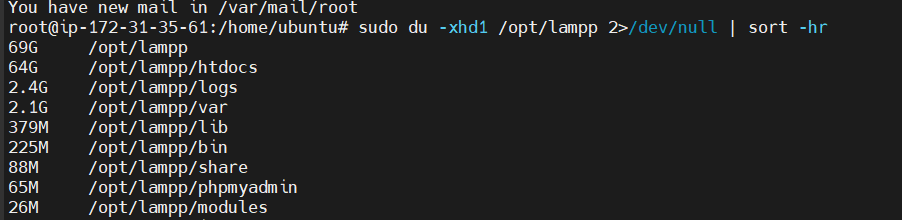
next step
sudo du -xhd1 /opt/lampp/htdocs 2>/dev/null |
sort -hr |
head -30
output
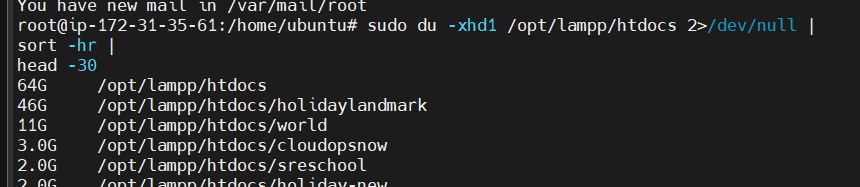
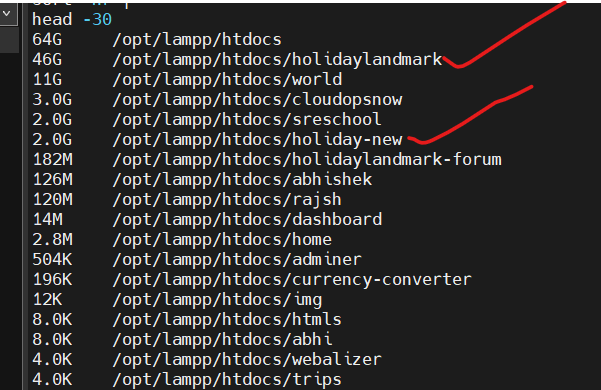
next step
sudo du -xhd1 /opt/lampp/htdocs/holidaylandmark 2>/dev/null |
sort -hr |
head -30
output
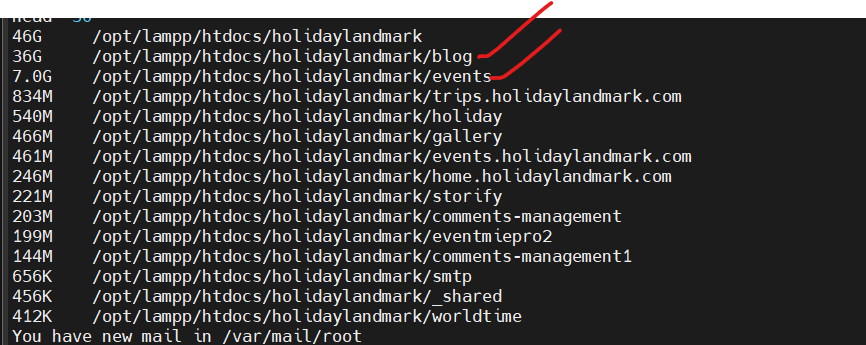
You may get output like:
365G    /
220G    /opt
90G     /var
40G     /home
8G      /usr
The largest folder is where you search next.
- Automatically show the 30 largest folders
sudo du -xhd2 / 2>/dev/null | sort -hr | head -30
This checks two directory levels, for example:
220G    /opt/lampp
180G    /opt/lampp/htdocs
90G     /var/lib
For deeper inspection:
sudo du -xhd3 / 2>/dev/null | sort -hr | head -50
This may take some time but is read-only.
- Check your important server locations separately
sudo du -xhd1 /opt 2>/dev/null | sort -hr
sudo du -xhd1 /opt/lampp 2>/dev/null | sort -hr
sudo du -xhd1 /opt/lampp/htdocs 2>/dev/null | sort -hr | head -30
sudo du -xhd1 /var 2>/dev/null | sort -hr | head -30
sudo du -xhd1 /home 2>/dev/null | sort -hr | head -30
- Find the 50 largest individual files
This command searches only /dev/sda1 and does not cross into tmpfs, /boot or other mounted filesystems:
sudo find / -xdev -type f -printf '%s\t%p\n' 2>/dev/null |
sort -nr |
head -50 |
numfmt --field=1 --to=iec
Example output:
82G  /opt/lampp/logs/error_log
19G  /opt/lampp/htdocs/project/storage/framework/sessions/...
10G  /backup/old-backup.tar.gz
3G   /opt/lampp/var/mysql/mysql-slow.log
- Find all files larger than 1 GB
sudo find / -xdev -type f -size +1G \
-printf '%s\t%p\n' 2>/dev/null |
sort -nr |
numfmt --field=1 --to=iec
- Check if deleted files are still consuming space
If folder totals do not add up to approximately 365G, run:
sudo lsof +L1
For only large deleted-but-open files:
sudo lsof +L1 2>/dev/null |
awk '$7 ~ /^[0-9]+$/ && $7 > 1073741824 {
    printf "%.2f GB\tPID=%s\tPROCESS=%s\t%s\n",
    $7/1073741824, $2, $1, $9
}'
Such files continue using disk space until their owning service closes them or is safely restarted.
Best single command
To immediately see the largest folders and files under /dev/sda1:
sudo du -xah / 2>/dev/null | sort -hr | head -50
- Inspect Apache logs
sudo du -ah /opt/lampp/logs 2>/dev/null | sort -h | tail -30
If these are confirmed Apache log files, truncate them without deleting the files:
sudo truncate -s 0 /opt/lampp/logs/access_log
sudo truncate -s 0 /opt/lampp/logs/error_log
sudo truncate -s 0 /opt/lampp/logs/ssl_request_log 2>/dev/null
Remove only already-rotated logs:
sudo find /opt/lampp/logs -maxdepth 1 -type f \
\( -name "*.gz" -o -name "*.[0-9]" -o -name "*.old" \) \
-print
After checking the displayed files:
sudo find /opt/lampp/logs -maxdepth 1 -type f \
\( -name "*.gz" -o -name "*.[0-9]" -o -name "*.old" \) \
-delete
- Find Laravel session directories
First list their sizes:
sudo find /home /opt/lampp/htdocs -type d \
-path "*/storage/framework/sessions" \
-exec du -sh {} \; 2>/dev/null
Preview session files older than seven days:
sudo find /home /opt/lampp/htdocs -type f \
-path "*/storage/framework/sessions/*" \
-mtime +7 -print 2>/dev/null | head -100
Delete only Laravel file-based sessions older than seven days:
sudo find /home /opt/lampp/htdocs -type f \
-path "*/storage/framework/sessions/*" \
-mtime +7 -delete 2>/dev/null
This logs out users whose sessions are older than seven days. If Laravel sessions are stored in a database, this command will not clean them.
- Inspect MySQL logs
sudo find /opt/lampp/var/mysql -maxdepth 1 -type f \
\( -name "*.err" -o -name "*slow*.log" -o -name "mysql-bin.*" \) \
-exec ls -lh {} \; 2>/dev/null
Truncate only active error and slow-query logs:
sudo find /opt/lampp/var/mysql -maxdepth 1 -type f \
\( -name "*.err" -o -name "*slow*.log" \) \
-exec truncate -s 0 {} \;
Do not manually delete mysql-bin.* files. Purge old binary logs through MySQL:
sudo /opt/lampp/bin/mysql -u root -p \
-e "PURGE BINARY LOGS BEFORE (NOW() - INTERVAL 7 DAY);"
- Locate backups and installer archives
Preview likely backup and archive files:
sudo find /home /opt /var/backups -xdev -type f \
\( -name "*.sql" -o -name "*.sql.gz" -o -name "*.tar" \
-o -name "*.tar.gz" -o -name "*.zip" \) \
-size +100M -printf '%10s bytes  %TY-%Tm-%Td  %p\n' 2>/dev/null |
sort -nr
Do not delete these automatically. Some may be your only valid backups. Delete files only after identifying the exact obsolete paths:
sudo rm -- "/exact/path/to/confirmed-old-backup.tar.gz"
- Check recovered space
df -h /
sudo du -sh /opt/lampp/logs /opt/lampp/var/mysql 2>/dev/null
The Apache and MySQL log commands preserve active files. For the claimed 10 GB backups and 0.4 GB installers, first use the preview command and delete only explicitly confirmed files.



Top comments (0)