
Understanding the Core Theory
How Keycloak Manages Sessions
Practical Observation
How to Fix It (Step-by-Step)
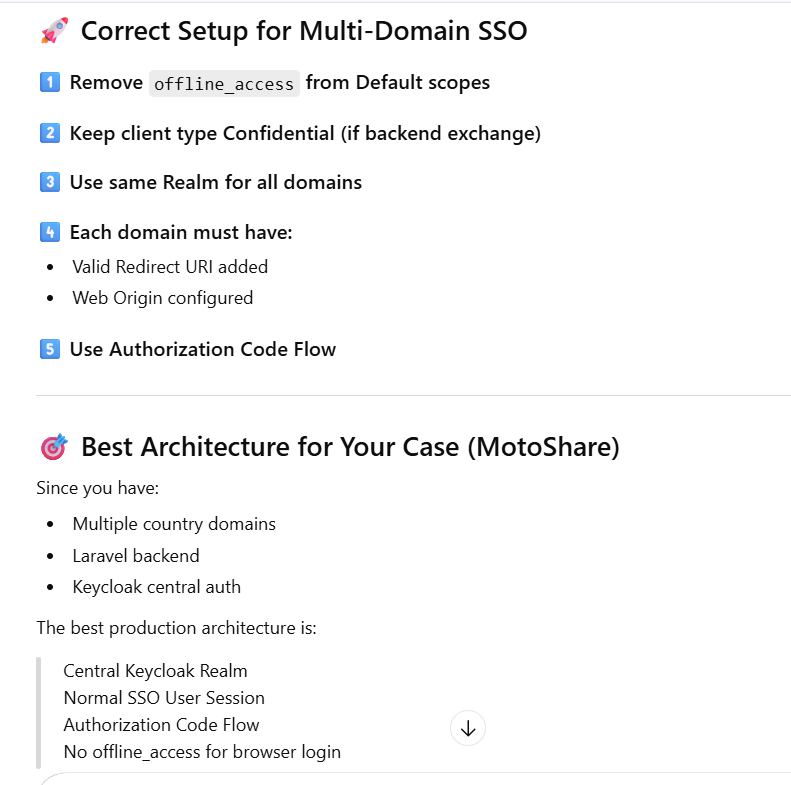
Which type session prefer for multidomain
If you are using Keycloak and you notice that:
✅ Login is successful
✅ CODE_TO_TOKEN event appears
❌ But no session is visible in Users → Sessions
Then most likely the reason is:
offline_access is set as Default Client Scope
This article explains:
What offline_access actually does

Why sessions are not visible

The theory behind offline tokens

Step-by-step fix

When you should or should NOT remove it
Understanding the Core Theory
🔐 What Is offline_access?
offline_access is a built-in OpenID Connect scope in Keycloak.
When this scope is requested:

Keycloak issues an Offline Refresh Token

The token works even when the user is offline

It does NOT depend on browser session

It is stored as an offline session internally
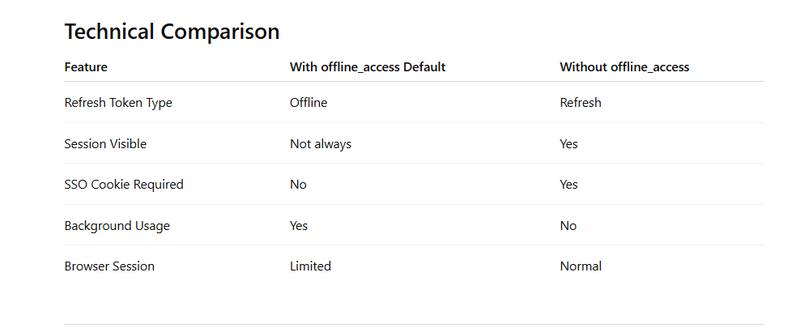
⚙ What Happens When offline_access Is Default?
If offline_access is marked as:
Assigned Type → Default
Then:
Every login automatically includes offline_access
Keycloak issues an offline refresh token
refresh_token_type: Offline
Session may NOT behave like a normal SSO browser session
That is why:
Users → Sessions → No session visible
Even though login was successful.
How Keycloak Manages Sessions
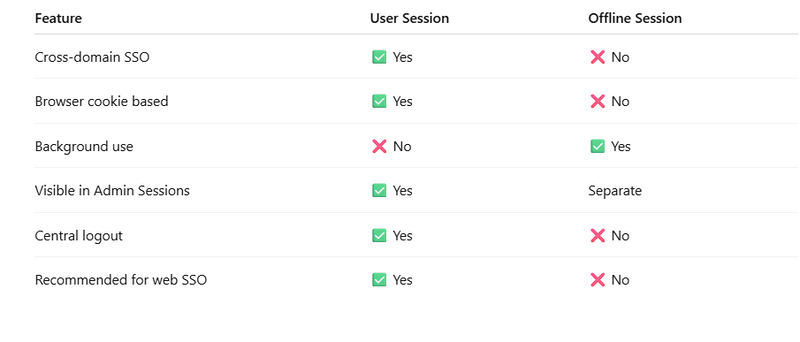
There are two types of sessions in Keycloak:
1️⃣ Normal Browser Session
Created during standard login
Stored with SSO cookies
Visible in:
Users → Sessions
2️⃣ Offline Session
Created when offline_access is used

Stored separately

Used for long-running background processes

Not treated as normal SSO session
Practical Observation
When offline_access was Default:
refresh_token_type: Offline
scope: openid offline_access profile email
Session was NOT visible.
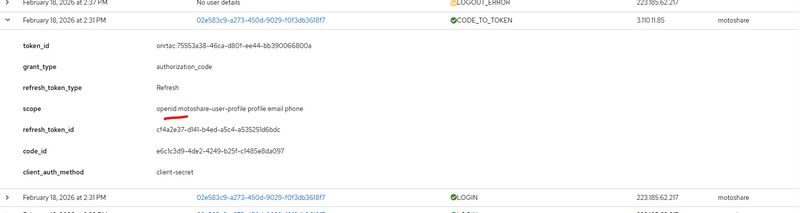
After removing or making it Optional:
refresh_token_type: Refresh
scope: openid profile email
Session became visible immediately.
This confirms the behavior.
How to Fix It (Step-by-Step)
Step 1 — Go to Client Scopes
Realm → Client Scopes
Step 2 — Find offline_access
You will see:
offline_access → Assigned Type: Default
Step 3 — Change It
You have two options:
Option A (Recommended)
Change:
Default → Optional
This means:
It will not be added automatically
It will only be used if explicitly requested in scope
Option B (Strong Fix)
Remove it completely from the client.
Go to:
Clients → motoshare → Client Scopes
Remove:
offline_access
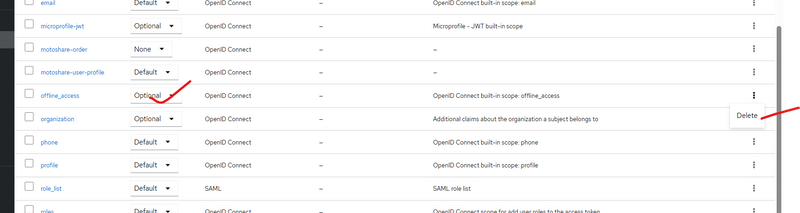
before optional or remove offline access
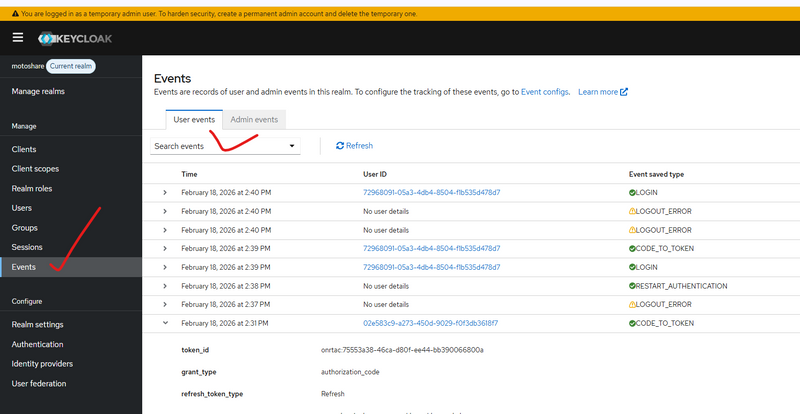
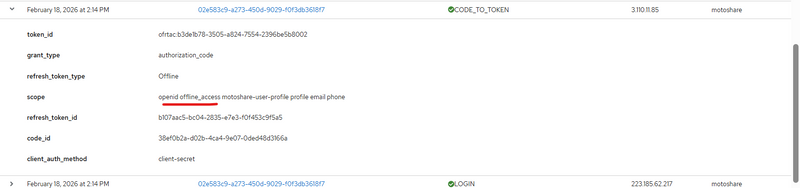
after optional or remove offline access
Step 4 — Save
Click Save
Step 5 — Clear Old Sessions
Users → Logout all sessions
Clear browser cookies.
Login again.
Expected Result After Fix
You will now see:
Users → User → Sessions
An active session like:
Started time
Last access
IP address
Client name
When Should You KEEP offline_access?
Keep it only if:
You need long-lived tokens
You run background jobs
You build mobile apps with refresh without user login
You have server-to-server processing
When Should You REMOVE It?
Remove it if:
You are building normal web login (Laravel, React)
You want SSO browser session
You want session visible in admin panel
You do not need offline background token usage



Top comments (0)