
Git keeps a history of the files you have committed. If someone changes a live website file such as index.php, you can use Git to compare the live file with a known version, inspect older versions, and restore a clean copy. Commands such as git status show which files changed, while git diff shows the exact changes. After verifying that a committed version is clean, git checkout or git restore can put that version back.
In my Laravel website incident, the homepage showed a gambling page because the live index.php had been changed. The version stored in Git was clean, so restoring index.php helped bring back the normal homepage. Git helped recover the file; it did not explain how the change happened or secure the server. Those require a separate investigation and security fixes.
Keeps file history: Git stores versions of files that were committed. You can inspect an earlier index.php if that version exists in the repository.
Shows which tracked files changed: git status --short helps you spot modified or deleted files. It also lists untracked files, such as an unexpected blog/index.html.
Shows the exact changes: git diff -- index.php compares the working file with Git’s staged version. This can reveal injected content. Use git diff --cached -- index.php to check changes that were already staged.
Helps you find a known good version: git log --oneline --follow -- index.php lists earlier commits affecting the file. git show :index.php lets you read an older version without changing the live website.
Restores one file: After verifying the Git version is clean, git checkout -- index.php can replace the changed working file. You can also use git restore to select a particular older commit.
Can reverse a bad commit: If the unwanted change was committed, git revert creates another commit that reverses it while keeping the history.
Can help after an accidental reset: git reflog shows where the local branch pointed recently, which may help you find a lost commit. It cannot recover every overwritten, uncommitted change.
What Happened on My Laravel Website
- Visitors saw a gambling page because the live index.php had been changed.
- The version of index.php stored in Git was clean.
- Restoring the file with git checkout -- index.php .htaccess helped bring back the normal homepage.
- Git restored those tracked files, but any separate untracked suspicious file needed its own investigation.
- Restoring the homepage did not reveal how the files were changed or secure the server. I still needed to investigate the entry point, check other files, and address the reported public access to .env. Before replacing a suspicious file, save a copy outside the web directory. Its contents and timestamps may be useful during the investigation.
How to Restore a Changed File with git checkout
How to Restore a Changed File with git checkout
website-hacking-seo-spamincident-response
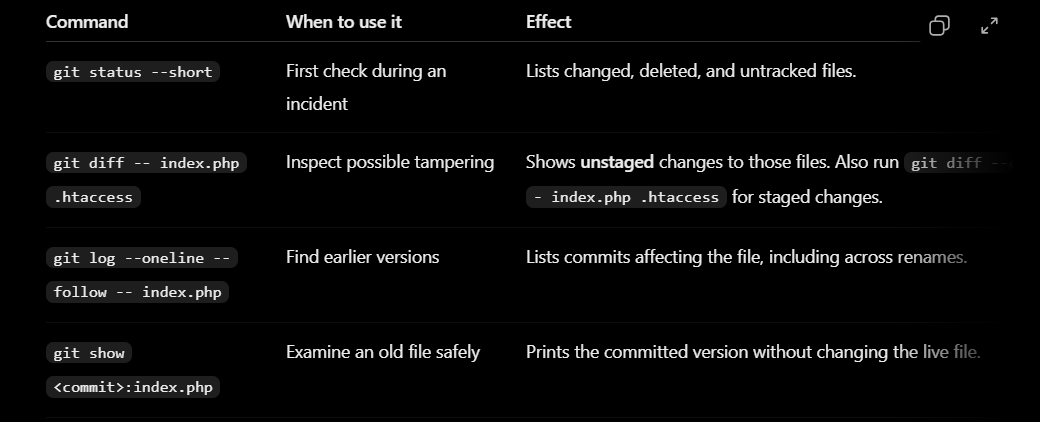
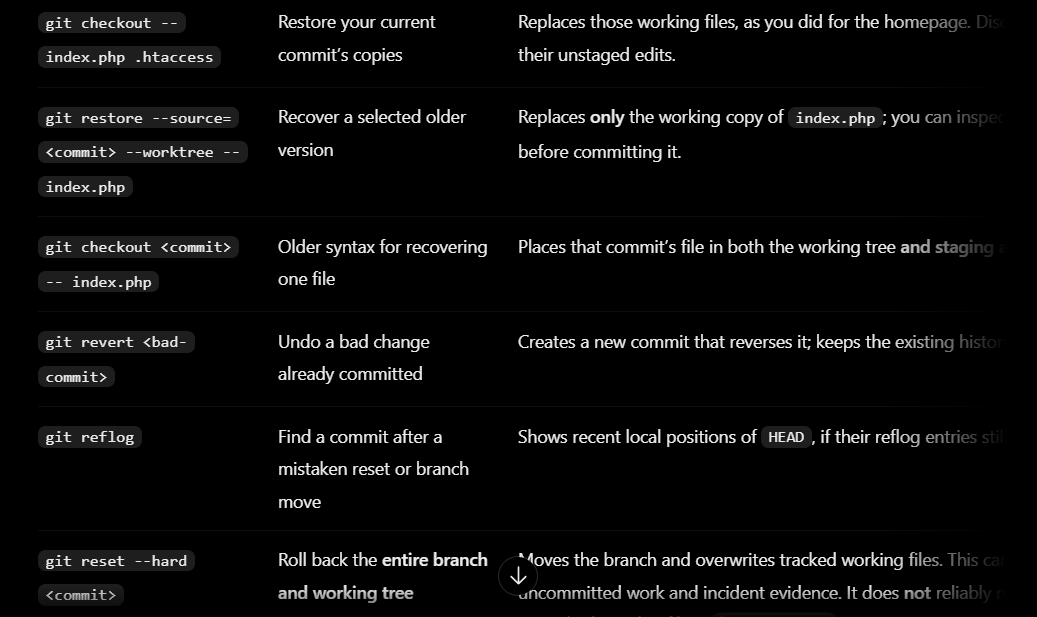
Use of Different Git command
git status --short — see which files changed
git status --short
Before: index.php and .htaccess were changed; an extra file appeared.
 M index.php
 M .htaccess
?? blog/index.html

M means modified. ?? means untracked: Git has no committed copy of that file.
After: This command changes nothing. Running it again gives the same output.
- git diff -- index.php .htaccess — see what changed
git diff -- index.php .htaccess
Before: Git’s index.php starts Laravel, but the working file contains spam.
Example output:
diff --git a/index.php b/index.php
--- a/index.php
+++ b/index.php
@@
-<?php require __DIR__.'/vendor/autoload.php';
+<html><title>CERUTU4D</title>...</html>
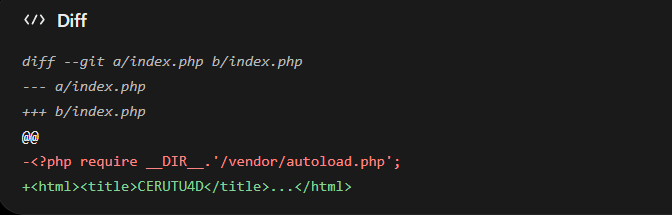
After: No files change. The diff still appears if you run it again.
This shows unstaged changes. If git status --short shows M with the M in the first column, inspect staged changes too:
git diff --cached -- index.php .htaccess
3.** git log --oneline --follow -- index.php — find earlier commits**
git log --oneline --follow -- index.php
Example output:
a81c390 Update Laravel entry point
74b2e10 Fix bootstrap path
31d9f42 Initial homepage
After: Nothing changes. You now have commit hashes to inspect. --follow also helps trace the file across a rename.
- git show :index.php — read an old version
git show 74b2e10:index.php
Example output:
<?php

require __DIR__.'/vendor/autoload.php';

$app = require_once __DIR__.'/bootstrap/app.php';
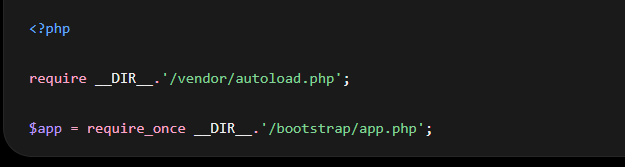
Before and after: Your live index.php stays exactly as it was. This is a good way to check whether commit 74b2e10 has the version you actually want.
- git checkout -- index.php .htaccess — restore the current staged versions
git checkout -- index.php .htaccess
Before:
Working index.php: gambling page
Git index.php:     clean Laravel entry point
Command output: Usually none.
After:
Working index.php: clean Laravel entry point
Git index.php:     clean Laravel entry point
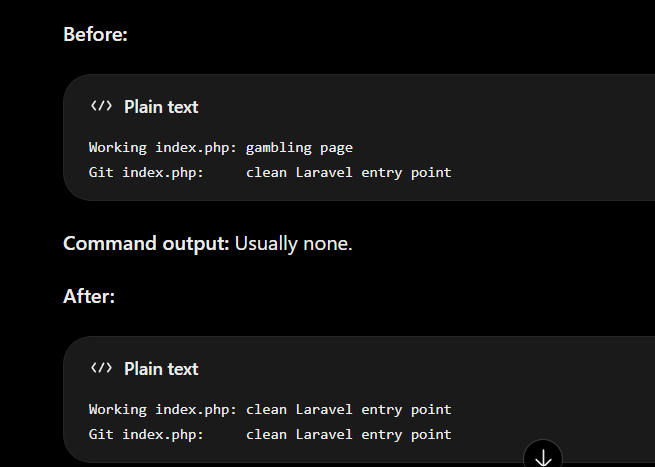
Check the result:
git status --short
?? blog/index.html
The modifications to index.php and .htaccess are gone. The untracked blog/index.html is still there. This is why your homepage could recover while a separate suspicious file remained.
Technically, git checkout -- file copies from Git’s index (staging area). If someone staged a malicious version first, this command could copy that version. Inspect staged changes when that is possible.
- git restore --source= --worktree -- index.php — recover an older file without staging it Suppose the current committed homepage is broken, and you verified that 74b2e10 has the clean version:
git restore --source=74b2e10 --worktree -- index.php
Before:
HEAD index.php:    broken newer version
Working index.php: broken newer version
Command output: Usually none.
After:
HEAD index.php:    broken newer version
Working index.php: clean version from 74b2e10
git status --short
M index.php
The leading space before M means the recovered file is changed in your working tree but not staged. You can review it with git diff -- index.php.
- git checkout -- index.php — recover an older file and stage it
git checkout 74b2e10 -- index.php
Before: The working file and staged version contain the newer version.
Command output: Usually none.
After:
git status --short
M index.php
Here M is in the first column: the older file is already staged. Check what would go into a commit with:
git diff --cached -- index.php
That staging behavior is the key difference from the git restore --worktree example above.
- git revert — reverse a bad committed change Suppose commit c52f901 introduced an unwanted homepage change: git revert c52f901
Before:
c52f901 Add unwanted homepage change
a81c390 Previous good commit
Example output:
[main e63a104] Revert "Add unwanted homepage change"
 1 file changed, 1 insertion(+), 1 deletion(-)
After:
e63a104 Revert "Add unwanted homepage change"
c52f901 Add unwanted homepage change
a81c390 Previous good commit
Git keeps the bad commit in history and adds a new commit that reverses it. A revert can require conflict resolution if later commits changed the same lines.
- git reflog — find where your branch pointed before a reset Suppose someone ran git reset --hard and you need to find the previous commit: git reflog
Example output:
74b2e10 HEAD@{0}: reset: moving to 74b2e10
a81c390 HEAD@{1}: commit: Update Laravel entry point
Before and after: git reflog changes nothing. It tells you that this local repository previously pointed at a81c390. You can inspect it first:
git show --stat a81c390
A reflog may help recover committed work after a reset. It cannot bring back an uncommitted file overwritten by reset --hard, and its entries do not last forever.
For your actual incident: start with status, both diff commands, log, and show; preserve suspicious files; then restore only the verified files you need. git reset --hard affects the whole tracked working tree, so it is a poor first response to one changed homepage file.



Top comments (0)